
Adding and editing product inventory process.
Step 1: Click The Add New Link Under Puppies Listing
Note: clicking the arrow icon will open the new puppies post.
Step 1: Add Title Field
Note: This is important. New post wont be created without filling this field.
Step 2: Add Product Details
Note: Scroll down to proceed on “step 3: adding product image”.
Step 3: Add Product Image
Note: Click the “Set Featured image” and upload your photo prepared photo for this product.
Final Step
Note: Once all the fields is added and confirm correct click on publish button to complete adding the new product.
Step 1: Fill out title field
Step 2: Fill out all product information fields
Step 3: Add product image.
Final Step: Once all the fields is added and confirm correct click on publish page to complete adding the new product.
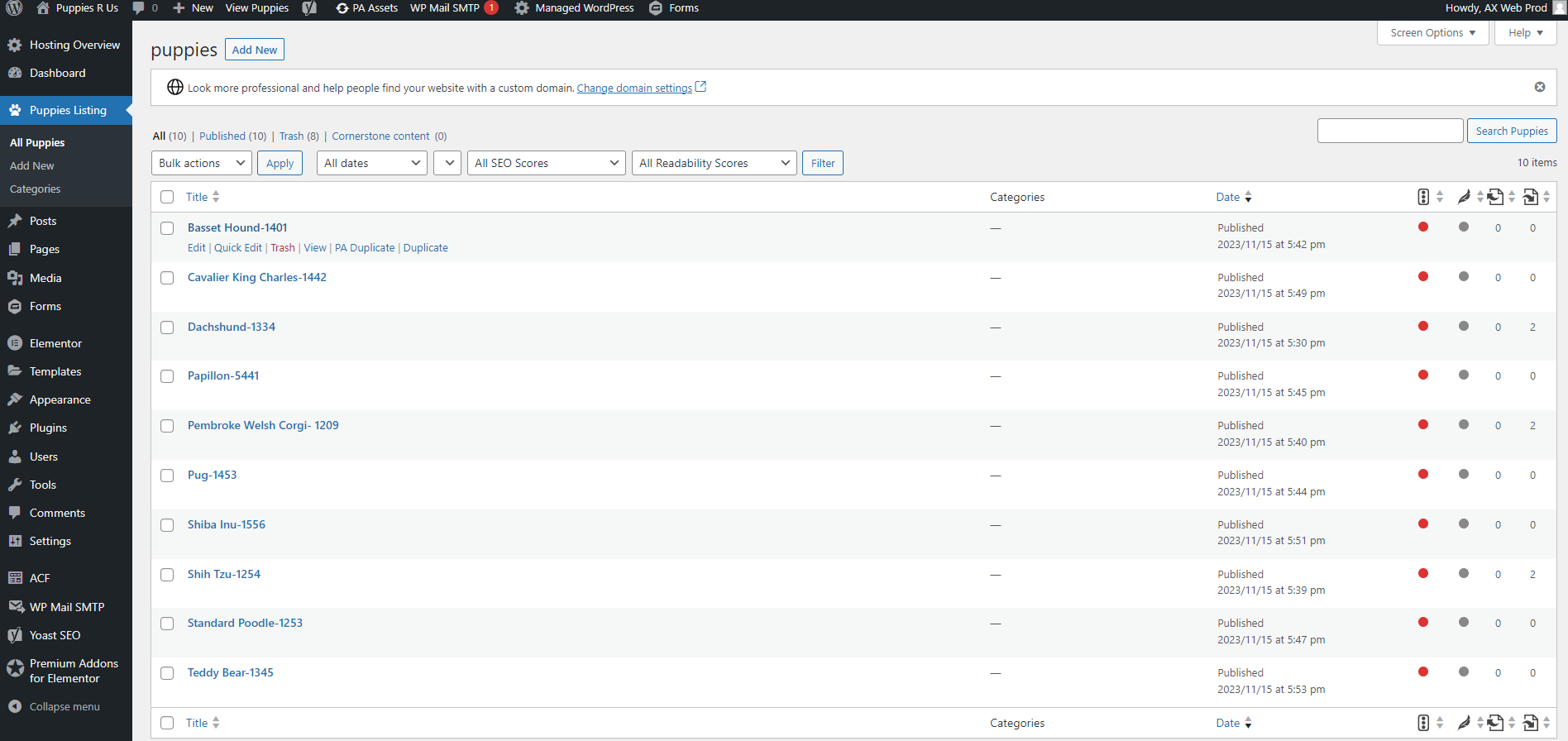
Step 1: Click on all pupplies link
Step 2: Hover over the product you need to edit
Note: Hover-Over The Product and Click Edit.
Hover-Over The Product and Click Edit.
Step 1: Set Availability As Sold
Note:
Select the sold value on our dropdown option.
Scroll up again to proceed on next step.
Step 1: Update Availability Value to Sold
Step 2: Set Status To Draft
Step 1-A: Update Product Status to Draft.
Step 1-B: Click the Update Button to publish the changes made.